|
Being an old Autocad user, I am used to snapping points having clear indicators for the middle point, canter point, end or other snaps. I can draw a line here and want to find its middle point but there are all kinds of places along it that seem to be snapping points. Do I have to turn all snaps off but the one I want? I'm now in 2.0.2. Isn't there a better way to find snapping point indicators?
|
|
well, 2.0.2 is too outdated version. For more explicit snapping, you'd better switch to 2.2.2-alpha (https://github.com/LibreCAD/LibreCAD/releases/tag/2.2.2_alpha-latest) - there is a visual indication (text label in informational cursor) for snapped point type.
There are many other improvements, as well (yet please not that while this version is more or less stable, it is still non-productional one and is development snapshot) |
|
In reply to this post by Vonzipper
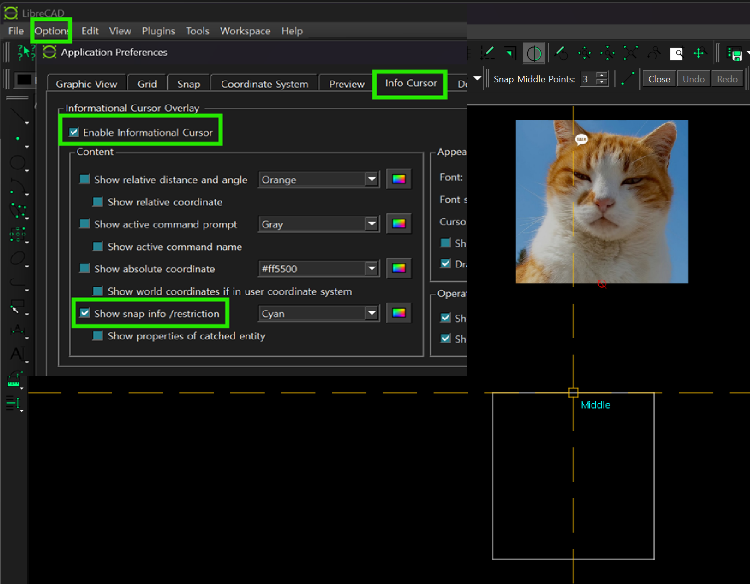
![]() Hello. I came across this post while looking for the same thing as you. I think it’s wonderful that you continue to challenge yourself with new programs as a hobby(?) after retirement. In LibreCAD 2.2.2 Alpha, the snap point indicator marker is somewhat different from AutoCAD, but you can confirm that it snaps to the midpoint of a rectangle’s side. If you check only “Snap info” in the Info Cursor and turn off the other unnecessary information, the display will be less cluttered and a bit easier to read. I haven’t used this Alpha version extensively, but it seems incomplete and has some inconveniences when used. The toolbar background is so dark that the icons are hard to see, and I don’t know where to change the color. Window resizing also doesn’t work. I believe that in the not‑too‑distant future we will see a more polished version of LibreCAD. |
|
In reply to this post by Vonzipper
indeed, 2.0.2 is too old version.
Yet in any newer versions snap points are not highlighted by default. To see the snap point - you may rely on snap indicator (configured in settings), and you'll see the nearest snapped point (which, in most cases, will be different from mouse point). And to perform snap - first you need to check which kind of snap (snap modes) are enabled in snap toolbar). Also, as it was mentioned in previous post - in 2.2.2-alpha you may get additional hint about snap point via Informational Cursor. I hope my changes for visual snap will be merged into master branch soon, and so in 2.2.2-alpha snap functionality will also support additional ways - like these ones: https://youtu.be/oyI51XT704k |
|
In reply to this post by Urstein
> I haven’t used this Alpha version extensively, but it seems incomplete and
Yes, this version is under active development. > has some inconveniences when used. Which ones? Could you report them - https://github.com/LibreCAD/LibreCAD/issues? > The toolbar background is so dark that the icons are hard to see, and I don’t know where to change the color. You may customize icons styling in Preferences -> Widget Options dialog. There is a section that allows to style 3 major colors of icons - and also, in advanced stylings, specify colors for each state of icon (i.e. active, disabled etc.). Here is a demo how to change colors of icons - https://www.youtube.com/watch?v=mbYkwPAdKJU, more details are in pull request description - https://github.com/LibreCAD/LibreCAD/pull/2078 Plus, external icons are also supported (i.e. ones loaded from external directory). >Window resizing also doesn’t work. Could you provide more information about this? Or just report this as a ticked with details on GitHub - https://github.com/LibreCAD/LibreCAD/issues |
|
Thank you to you and all the developers.
I watched your video and followed it exactly, but in my case I was only able to adjust the icon size. On Windows 11, it seems that the LibreCAD UI background color changes depending on whether the system theme is Light or Dark, but the icon colors cannot be changed. While working in maximized window mode, the application suddenly reacts as if it expands to a screen larger than my laptop display. I am not certain, but it seems to “remember” the larger monitor that had previously been connected via HDMI. When I reconnect the larger monitor, this symptom disappears. However, it is still impossible to resize the window by dragging one of its edges with the mouse, and the window also cannot snap to half the monitor size when dragged to the screen edges. I am attaching a video regarding the window resizing issue. WindowResizingProblem.mov - - - - - - - - - P.S. My question about the 2.2.2 alpha version issue seems to be outside the topic of this post, “Snapping indicators.” |
| Free forum by Nabble | Edit this page |